
Content
Enable Skip Budget Constraint on Claim
Skip Budget Constraint on Claim Line
Import Paid PRN to Claim
Overview
Manual Payment Requests must be submitted through the NDIS Portal. Once you receive the PRN for the payment, you can import the approved PRN into Planability.
This allows the claim to be paid to the provider through the usual payment flow while also maintaining a record of both the claim and the payment in Planability.
This feature is available to Directors and Plan Managers with elevated Claims permission. See Elevated Permissions. See Elevated Permissions
Enable Skip Budget Constraint on Claim
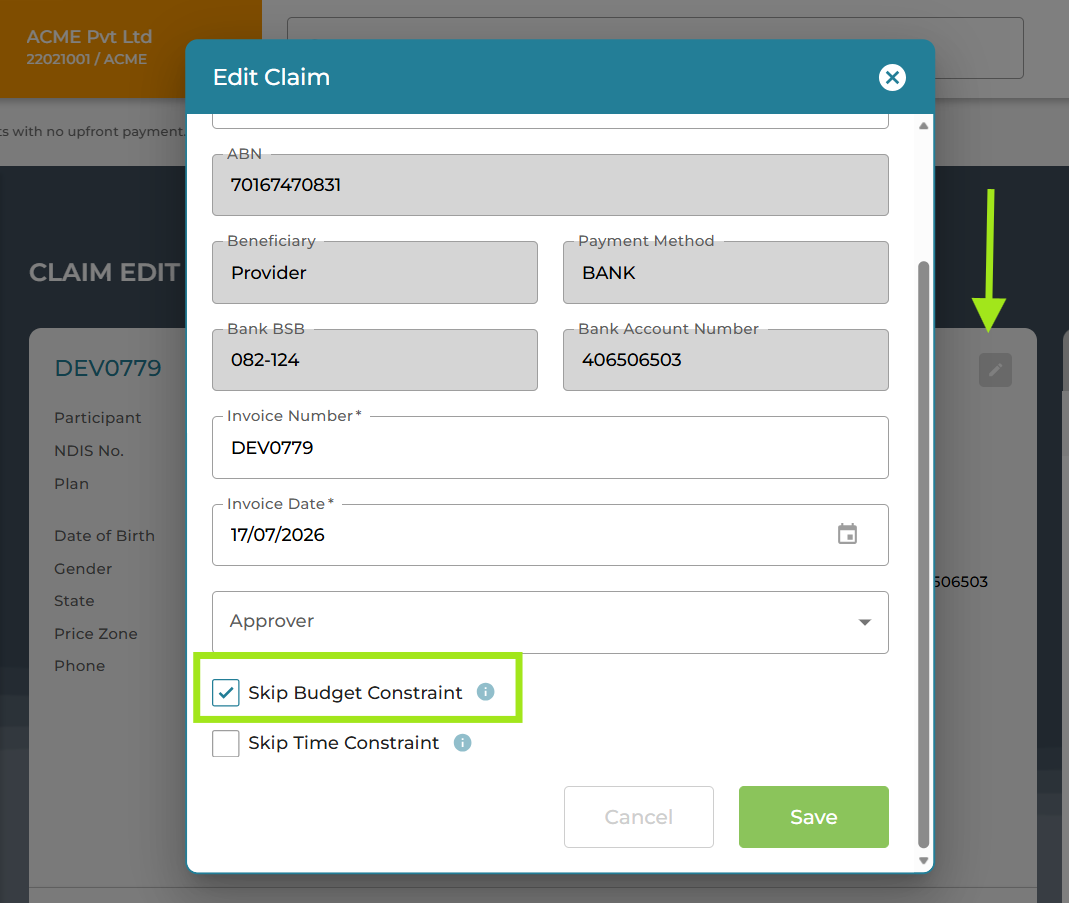
Create a claim and edit the Claim Information to select 'Skip Budget Constraint'.
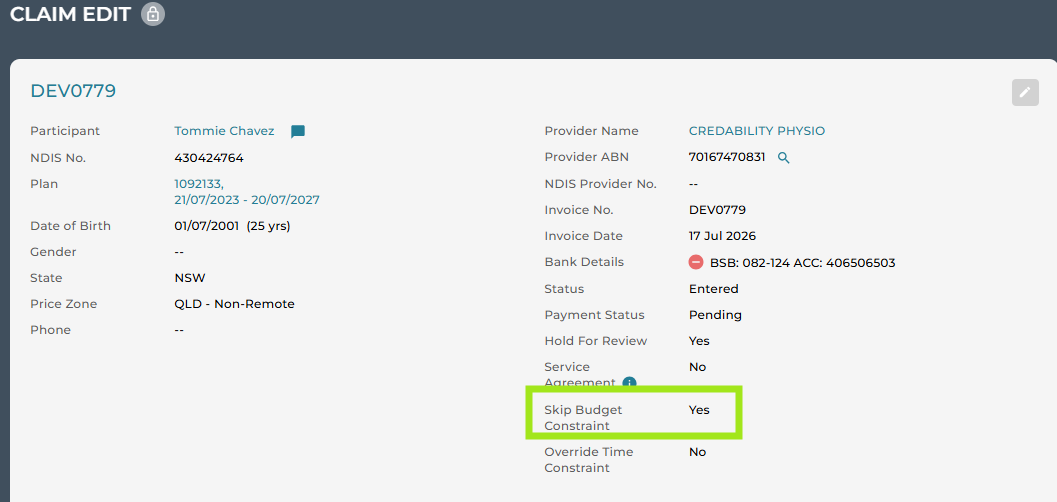
Once enabled, this will show in Edit Claim in the Claim information:
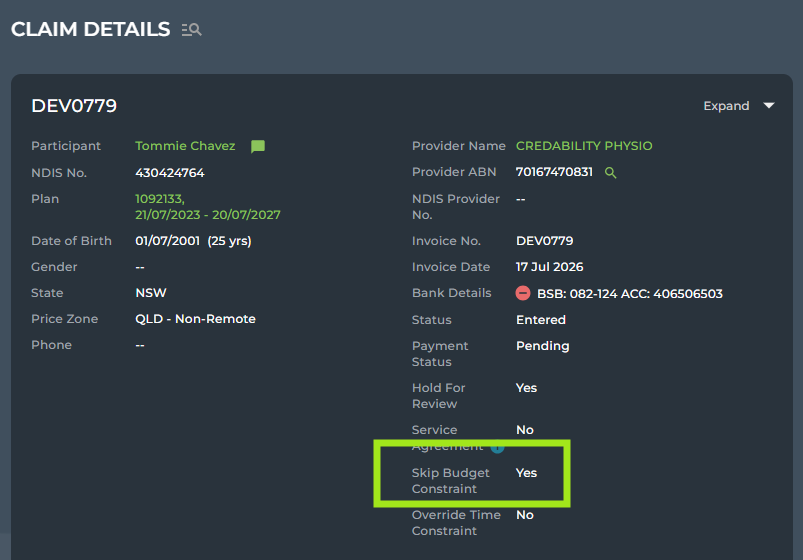
and on the Claim Details page:
Import Paid PRN to Planability
When the NDIS confirm payment and provide a PRN for the payment, you can import the paid PRN to the claim in Planability.
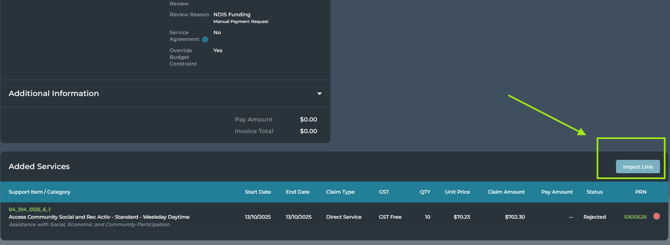
- From the Claim Details page or Edit Claim page, click Import Line in Added Services
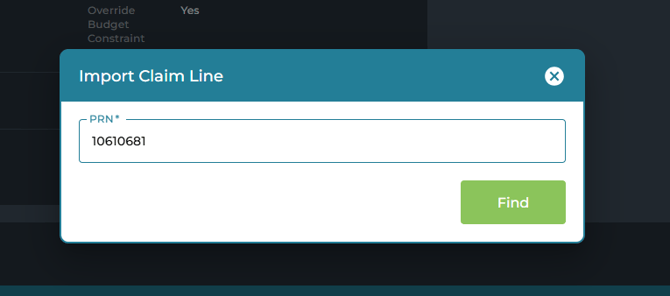
Enter the PRN for the paid claim and click Find
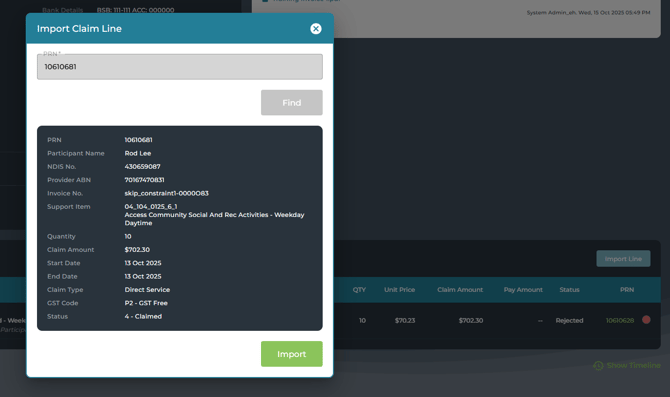
Select Import. The claim line will be imported and added to the Claim in Planability.
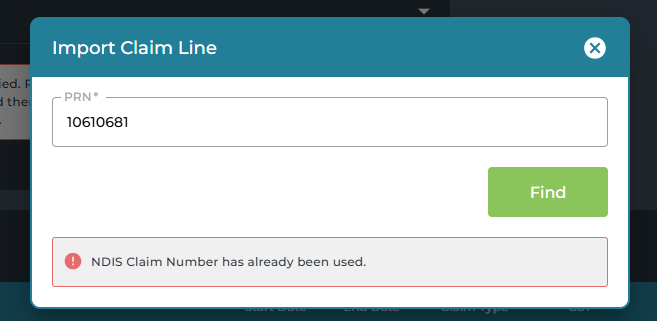
If the Participant details do not match or if the PRN is not unique, an error will show such as below:
The claim can then be enabled for payment to allow inclusion in a Payment Batch to the provider.