Content
Enable Skip Budget Claim
Skip Budget Constraint on Claim Line
Overview
The 'Skip Budget Constraint' allows authorised users to proceed with claims that would otherwise be prevented by certain budget validation rules. This provides agencies with flexibility to review exceptional circumstances and make informed decisions based on their own processes and policies.
There are two steps to actioning this on a claim:
-
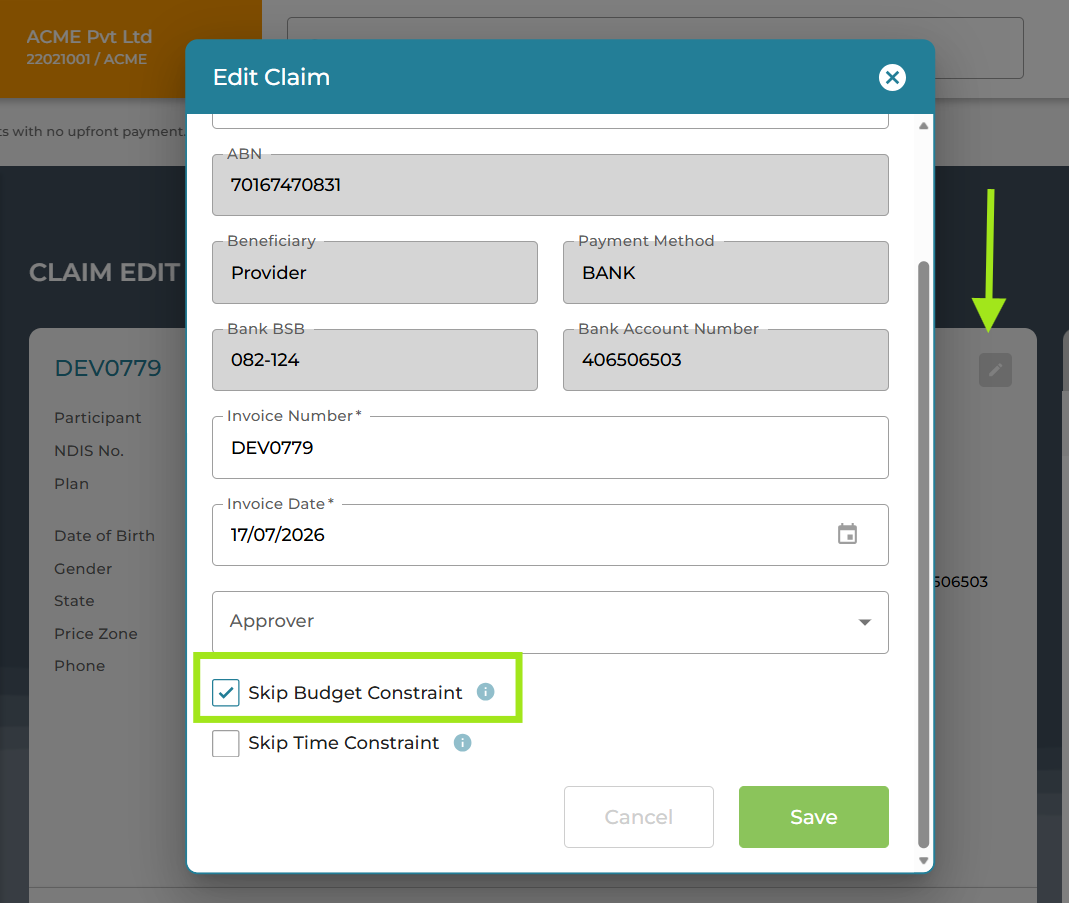
Select Skip Budget Constraint in the Claim Information
-
Edit the claim line with the budget alert to select 'Skip budget Constraint' in the claim line.
The Skip Budget Constraint permission bypasses certain system validations, including Funding Period allocations, available budget and Service Agreement allocations. As such, users should review the claim carefully and ensure it complies with their organisation's policies before proceeding. It is not automatically applied to all claim lines as it may impact more than future funding periods.
Overriding a Back Claiming Guardrail
When the Funding Period Back Claiming guardrail is enabled, A blocking claim line alert will show on any claim lines that cannot be allocated to the funding period. If the category has available budget, but the claim line funding period is exhausted with no earlier released budget available the claim line will show 'Cannot allocate to funding period'.
Overriding Insufficient Budget Guardrail
If there is insufficient budget in the category for the claim line, and it is not a funding period restriction, the claim line error will show 'the amount you have entered has exceeded the available budget'. Using the Skip Budget Constraint in this instance will allow you to submit the claim, but as there is insufficient budget available, it will result in a claim line rejection.
This feature is available to Directors and Plan Managers (elevated Claims Level 1 permission).
Enable Skip Budget Constraint on Claim
Edit the Claim Information to select 'Skip Budget Constraint'
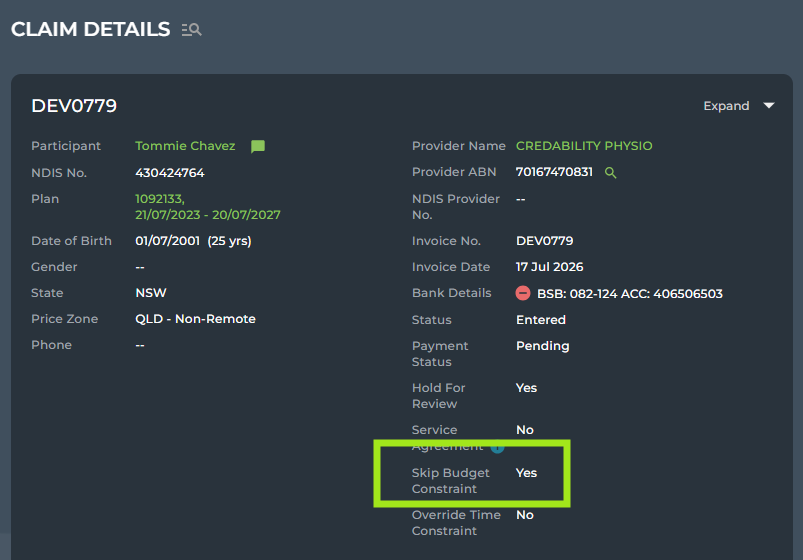
Once enabled, this will show in the Claim information on the Claim Details page:
Skip Budget Constraint on Claim Line
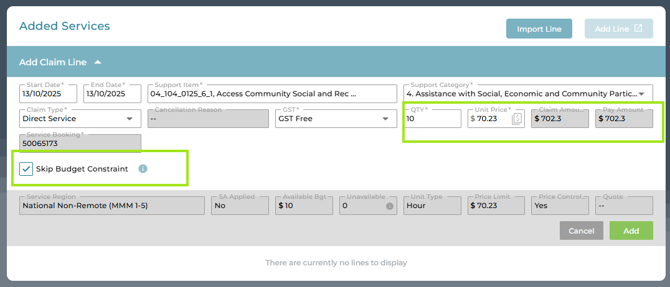
Next, edit the Claim Line to select to Skip Budget Constraint. This will skip the budget guardrails that would usually be applied to the claim line, allowing you to save the claim line, and submit to the NDIS.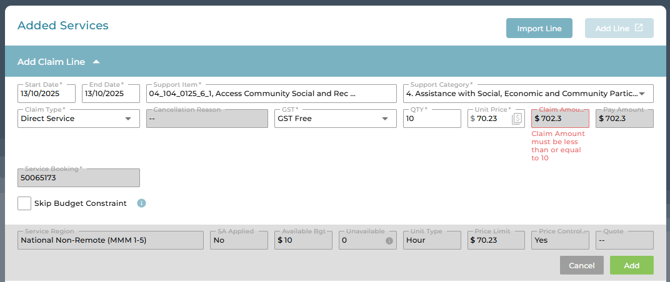
Select 'Skip Budget Constraint'
NOTE: if the entered claim line has an automatic adjustment to handle rounding, and there is available budget for the adjustment amount (eg., 1c) this will be claimed. We recommend removing the adjustment by editing the qty or rate so that it is not included.