
Table of Contents:
Overview
2FA required to login to Planability
OTP Verification required for payment details update
Overview
Two-factor authentication, also known as multi-factor authentication, allows you to make your Planability Account more secure by requiring authentication beyond a simple username and password when logging in.
Two-Factor Authentication is mandatory for Directors, Plan Managers, Support Coordinators and Carers. It is optional for Participants.
SMS will be used for Directors and Plan Manager users.
Support Coordinator and Carer users can manage their preference for this feature by updating their profile:
- click on your name at the top right of the screen and select Profile
- Scroll down to Security Settings
- Select Email or SMS
and may opt for either method.
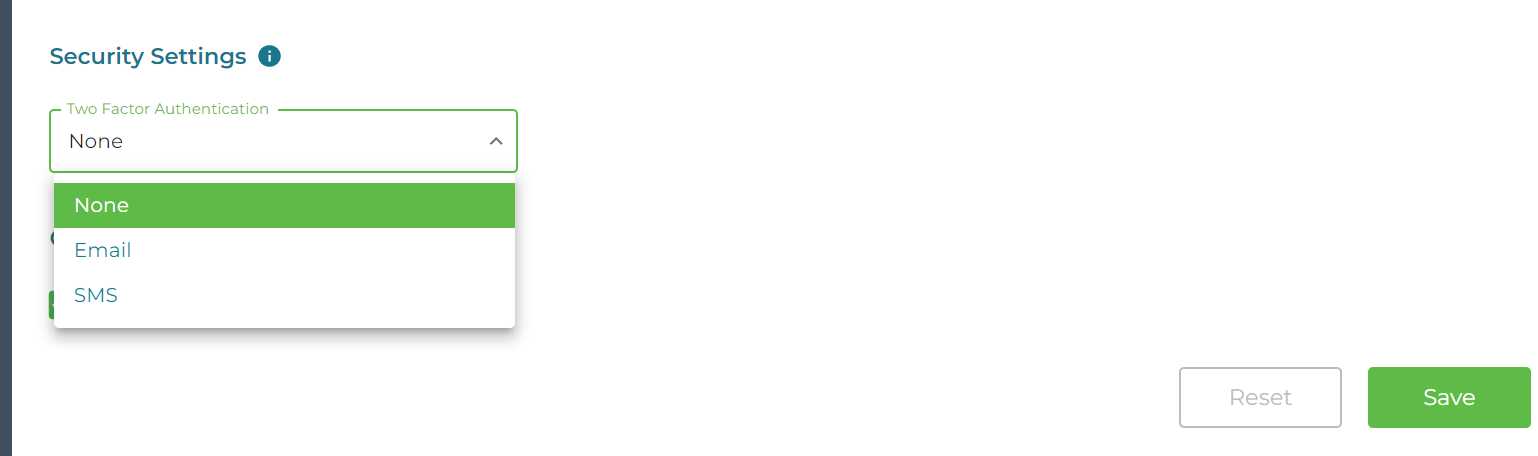
If you select SMS, please ensure that your mobile number has been entered correctly.
2FA required to login to Planability
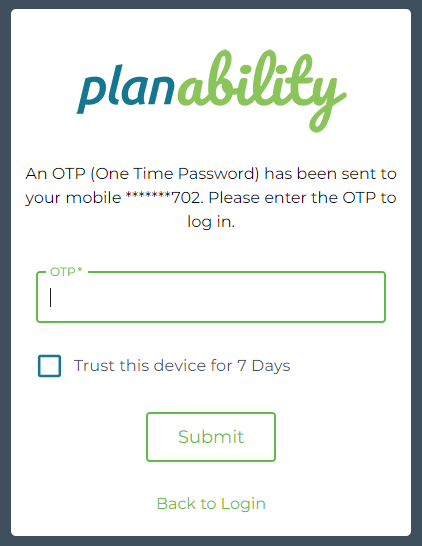
When you login to your Planability account you will be required to enter a verification code which you will receive by SMS
2FA Authentication by SMS
You will receive a text message to the mobile number saved to your profile with a 6 digit code:
###### - Planability Two Factor Authentication Code
OTP Verification required for payment details update
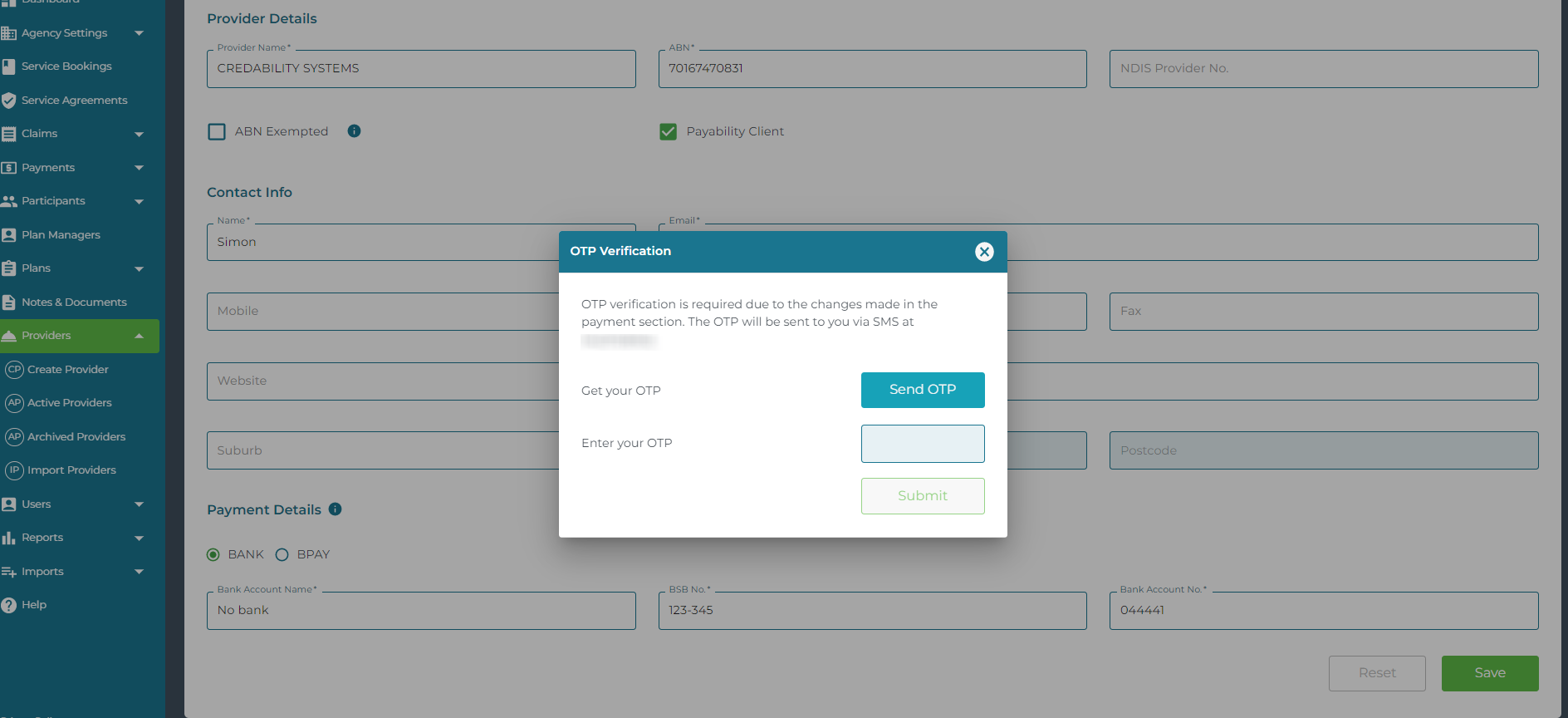
Any updates made to payment details for either Providers or Participants will require OTP (One Time Password) Verification.
Prior to saving any changes you will be required to enter a OTP verifcation code sent by SMS.
Related Article: 2FA Setup and Troubleshooting