
Table of Contents:
Why assign a claim?
Who can be assigned a claim?
Assign a Claim from Claims for Review or All Claims
Assign a Claim while reviewing or editing (new)
Reassign a claim
Remove an Assignee
View assignment history
Finding claims assigned to a User
Notes
A claim can be assigned, reassigned or unassigned from several areas within Planability.
Why assign a claim?
Assigning a claim can help your team:
- Escalate a claim to another user for review
- Route claims to a specialist team member
- Track responsibility for claim processing
- Balance workloads across users
- Quickly identify claims being worked on by a particular staff member
Who can be assigned a claim?
Claims can be assigned to:
- Users associated with the participant the claim belongs to
- Users with the Elevated 'Participant' Permission, who have access to all participants regardless of their association
Only users with access to the participant will be available for selection.
Assign a claim from Claims for Review or All Claims
You can assign a claim directly from the claims listing pages:
- Navigate to Claims > Claims for Review or Claims > All Claims
- Locate the claim
- Click the person icon in the claim row
- Select the user you would like to assign the claim to
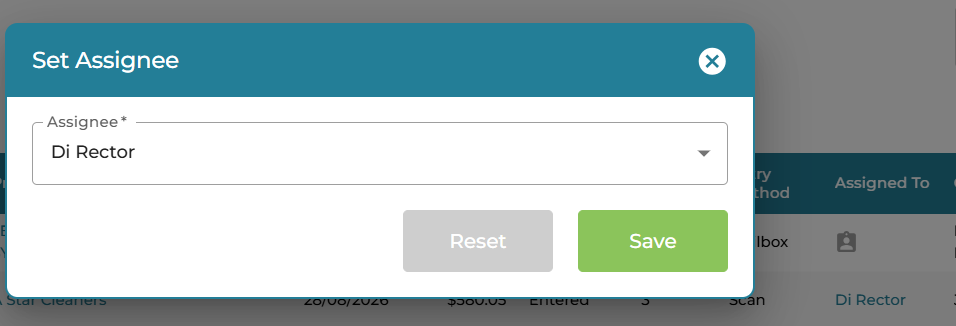
The claim will immediately display the selected assignee.
Assign a claim while reviewing or editing
As claim lists can update frequently, you may decide to transfer or escalate a claim while you are already reviewing it.
You can assign, reassign or remove an assignee directly from:
- Edit Claim Assign in Additional Information
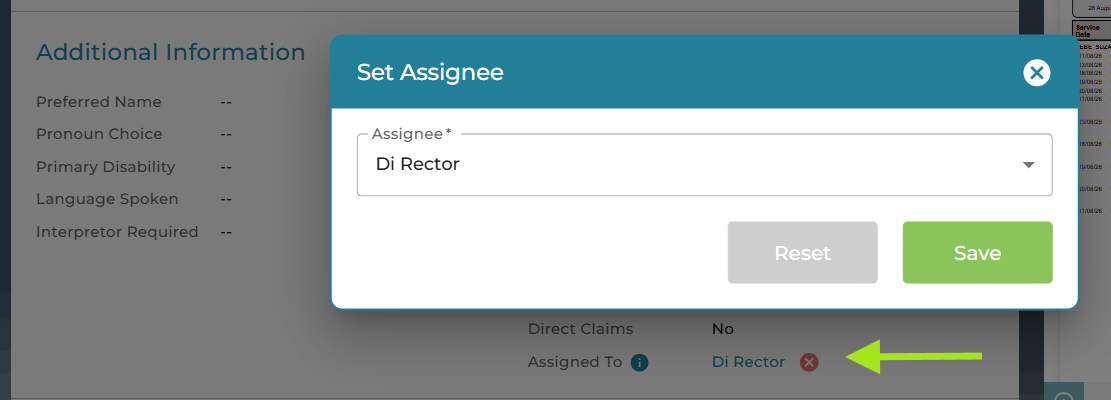
- Claim Details
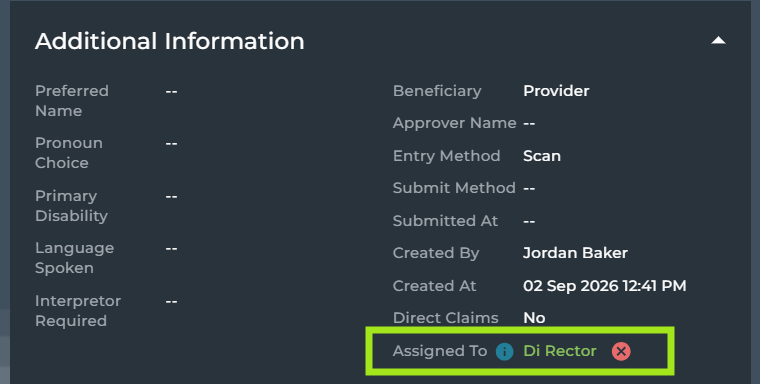
This allows you to update ownership without returning to the claims listing page.
Reassign a claim
If a claim has already been assigned, simply select a different user from the assignee field by clicking on the existing name.
The claim will be reassigned to the newly selected user.
Remove an assignee
To remove responsibility from a claim, select the option to clear or remove the current assignee.

The claim will become unassigned and can be reassigned later if required.
View assignment history
Any change to a claim's assignee is recorded in the claim timeline.
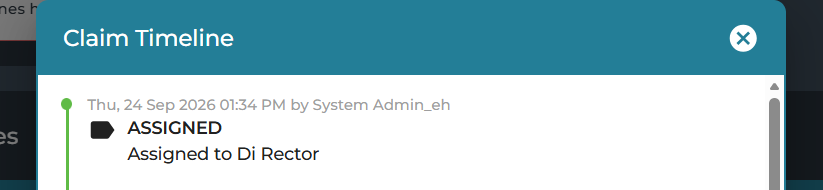
The timeline records when a claim is assigned, reassigned or unassigned, providing visibility of claim ownership throughout its lifecycle.
Finding claims assigned to a user
The claims listing pages include an Assigned To search filter.
Use this filter to:
- View all claims assigned to a specific user
- Locate escalated claims
- Monitor workloads across team members
- Find claims awaiting action
The filter is available on the claims listing pages and can be used at any time to quickly locate assigned claims.
Notes
- Assigning a claim does not send a notification to the assigned user.
- Users can locate their assigned claims using the Assigned To filter available on the claims listing pages.
- Assignment is intended to help teams manage ownership and escalation of claims.