
Table of Contents
Manage Another Plan Manager's Participant Workload
Overview
What this feature helps you do
How access works
Example Scenario
Enable Shared Plan Manager Access
View Shared Access
Manage Existing Associations
Tips for Agencies
Troubleshooting
Manage Another Plan Manager’s Participant Workload
Overview
This feature allows one or more Plan Manager users to be associated with another Plan Manager so they can view and manage that person’s participant workload.
This is useful for agencies that split participant allocations across multiple Plan Managers, provide team coverage during leave, or need operational support across caseloads.
When a participant is associated with a Plan Manager, that Plan Manager can already receive notifications about plan updates, view participant details and plan information, and view or create claims for that participant. With this enhancement, an authorised Plan Manager can also access another Plan Manager’s associated participants, including their plans and claims, without changing the original participant association.
What this feature helps you do
-
Provide coverage when a Plan Manager is unavailable
-
Support teams that divide participant workloads across multiple staff members
-
Maintain visibility across participant plans and claims when responsibilities are shared
-
Reduce administrative delays when another authorised user needs to step in
-
Keep participant management accurate while preserving existing participant associations
How access works
This enhancement adds a Plan Manager-to-Plan Manager association.
Once enabled:
- a Plan Manager can be linked to one or more other Plan Managers
- the linked user can view the other Plan Manager’s associated participants
- the linked user can view the claims for the other Plan Manager’s associated participants
- the linked user can open participant details, plans, and claims for those participants
- the original participant association remains unchanged
- users with group access and elevated participant permissions can still view all participants and use filters to focus on their own associated participants when needed
Example scenario
Agency A assigns Participant 1 to Plan Manager Sarah.
Sarah receives plan update notifications and manages day-to-day claim activity for that participant.
If Sarah is away or requires support, Agency A can associate Plan Manager James with Sarah. James can then view Sarah’s associated participants, including Participant 1, and manage the relevant plans and claims as needed.
Enable shared Plan Manager access
Follow these steps to enable and manage access between Plan Managers.
Step 1: Navigate to Plan Managers in the left menu
Step 2: Select the Plan Manager user
Open the user record for the Plan Manager who needs access to another user’s participant workload.
Step 3: Select the tab for Associated Plan Managers and select Manage Associations
See also: Elevated User Permissions
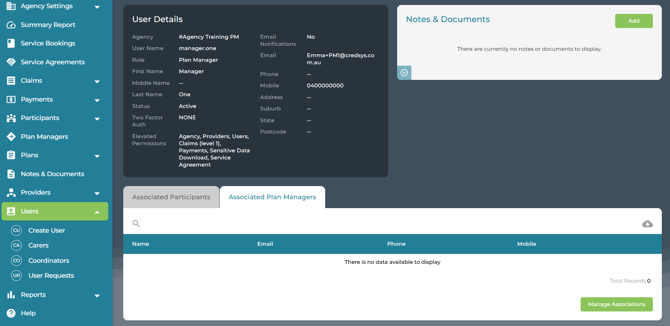
If the user has elevated participant permission, they will already be able to view all participants. This feature adds the ability to work from another Plan Manager’s associated participant list when shared access is required.
Step 4: Add the Plan Manager association
Create an association between the selected Plan Manager and the other Plan Manager whose workload they need to access.
Using the checkbox, Select the Plan Manager they need to access
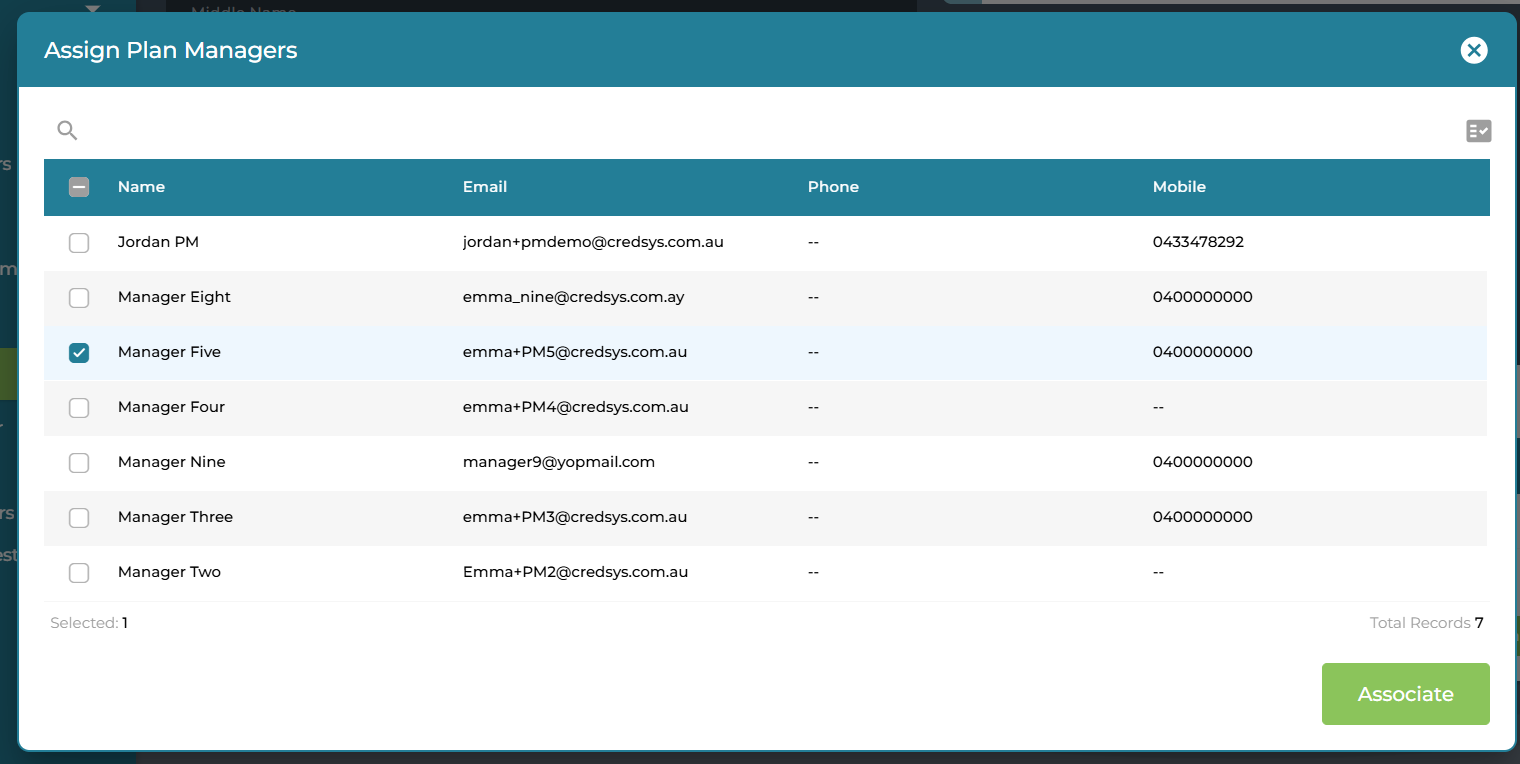
This feature may allow one-to-one or one-to-many associations.
Step 5: Save the changes
Select the Associate button to save.
View Shared Access
Step 6: Use filters to manage visibility
If the user can access a broader participant list, use the participant filter to switch between:
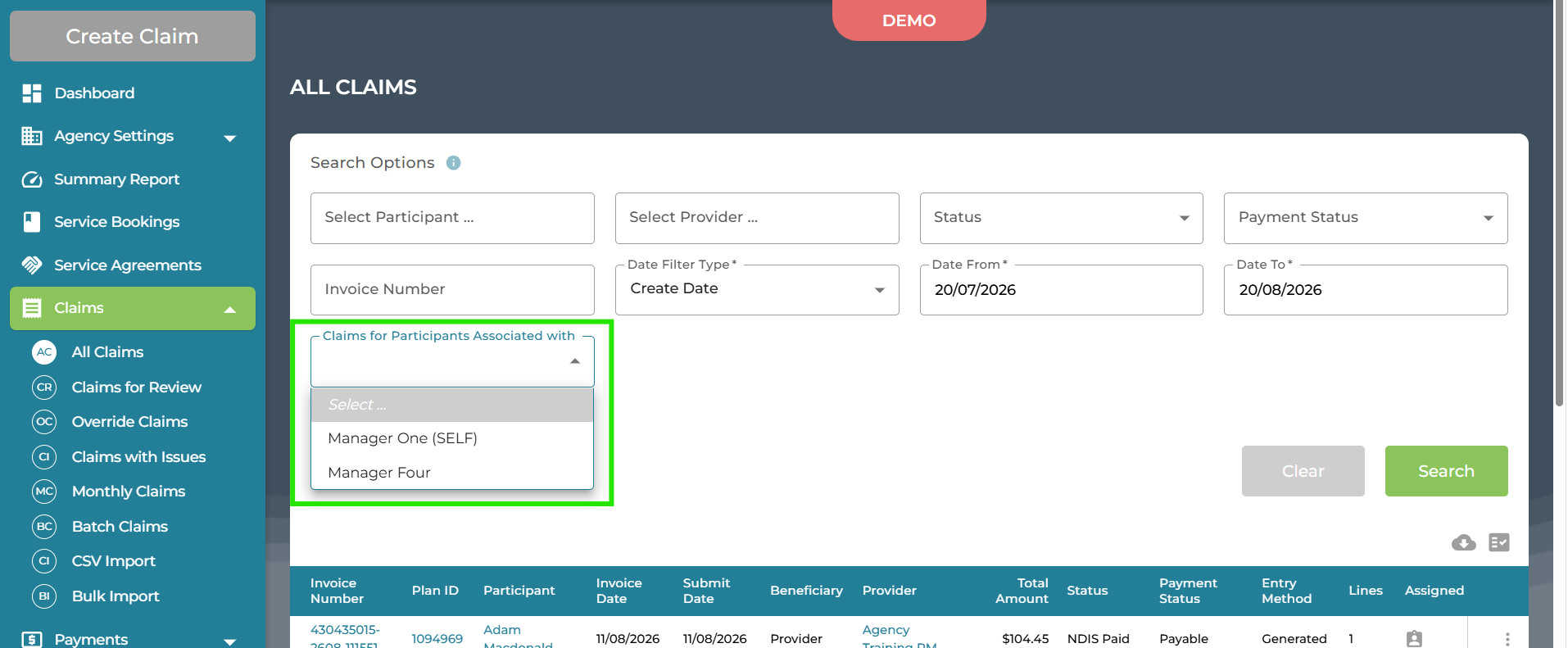
- all visible participants
- only their own associated participants (SELF)
- participants associated with the linked Plan Manager, where available in your setup
Where is shared access available?
All Claims
Claims for Review
Participants
Plans
Notes & Documents
Service Bookings
Service Agreements
Manage existing associations
To review or update shared access:
1. Open the relevant Plan Manager user record
2. Review the linked Plan Manager associations
3. Add or remove associations as needed
4. Save your changes
5. Confirm the updated access with the affected users (no notification emails are sent when access is changed)
Remove shared access
If shared workload access is no longer needed:
1. Open the Plan Manager user record
2. Find the linked Plan Manager association
3. Remove the association
4. Save your changes
5. Confirm the user can no longer access that Plan Manager’s associated participants, plans, and claims
Tips for agencies
- Use shared access for leave coverage, overflow support, and team-based participant management
- Keep associations current to reflect operational responsibilities
- Regularly review which users need cross-Plan Manager visibility
- Align shared access with your agency’s privacy, compliance, and participant management policies
Troubleshooting
A user cannot see another Plan Manager’s participants
Check that:
- the Plan Manager association has been added correctly
- the user has the correct role (Plan Manager)
- the user has the necessary participant permissions (elevated Participant allows the user to view all participants regardless of association)
- the changes have been saved
A user can see all participants already
This can happen when the user has elevated participant permissions. In this case, the feature still helps by supporting a clearer workload model based on Plan Manager associations and participant ownership.