
Table of Contents
Overview
Processing claims that require additional checks
Direct Claims with older support dates
Overview
Additional integrity checks on older claims are being rolled out by the NDIS on the following schedule:
Update - 5 October 2026
The NDIS has brought forward the rollout of additional integrity checks for claim lines older than 90 days after a support is delivered.
These checks were previously scheduled for December 2026 and are now scheduled to commence on 15 October 2026.
The rollout schedule below has been updated to reflect this change.
-
✅28th July 2026 - Additional checks for claim lines older than 12 months after a support is delivered.
-
✅16th July 2026 - Additional checks for claim lines older than 6 months after a support is delivered.
-
✅15 October 2026 - Additional checks for claim lines older than 90 days after a support is delivered.
- December 2026 - Claims must be submitted within 90 days of delivering a support.
More information on this schedule and how this can affect applicable claims can be found via the NDIS website -
Planability guardrails and warnings have been updated to align with the revised NDIS rollout schedule.
Processing claims that require additional checks
When a claim line is older than the current NDIS integrity check threshold, warnings will appear for all agency users.
All agency users will be able to add claim line(s) with the older dates, however only Director users and/or users with the Claims (Level 2) Elevated Permission will be able to override the time constraint and submit the claim.
When manually adding a claim line, the below warning will appear for all users -
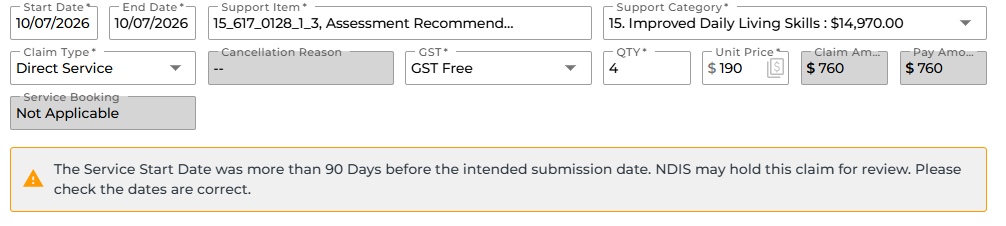
If the claim line is added, the claim will be blocked from being submitted and a warning will appear on the Claim Details page. This message will also appear on any scanned lines with older support dates.
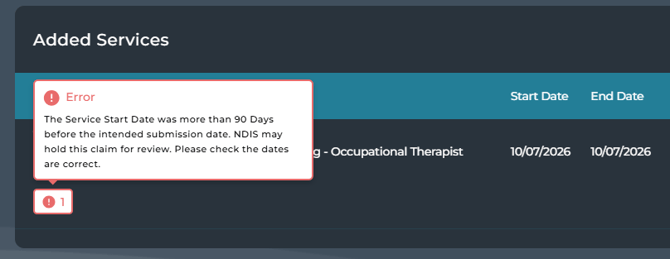
We recommend using the 'Hold For Review' option ('Dates' reason code) at this point so these claims can be found under the Claims For Review section under the 'Manually Held' tab.
If the agency would still like to proceed with processing the claim, a Director user or user with the Claims (Level 2) Elevated Permission will be able to override the time constraint and process the claim by submitting it or marking the claim for batch.
To do this as a Director or user with relevant Elevated Permissions:
- From the Claim Details page, edit the claim by clicking the Edit button on the top right.
- Edit the claim settings using the pencil icon (
 ) on the top panel.
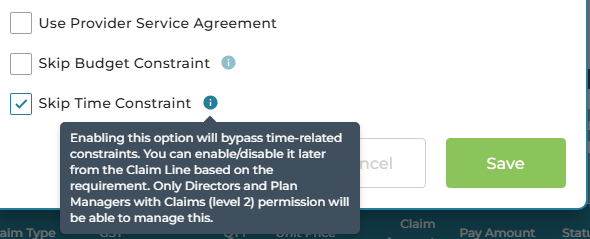
 - Select the 'Skip Time Constraint' checkbox and Save.
- Edit the relevant claim lines to apply the 'Skip Time Constraint' option.
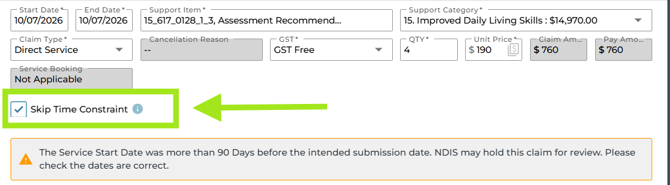
Once the Skip Time Constraint option has been applied to a claim line, the red warning will shift to an orange alert and the line will no longer be blocked. - If the claim was held for review, it will need to be marked as reviewed before being marked for batch or submitted.
Direct Claims with older support dates
If a Direct Claim is created with claim lines older than the NDIS integrity check threshold, the claim will not be automatically processed and will be flagged for review.
For more information on Elevated Permissions, see: User Roles and Elevated Permissions.